Help Guides
Surveys
Getting Responses
Managing Responses
If you use feedback request emails to collect feedback, you can control the email content (and the look) through templates. You can create different templates for your various surveys, or just use a central one if you prefer. Whenever you request feedback, you’ll tell the software what survey and email template to use.
Manage email templates
- Hover over Feedback Request Emails on the main menu.
- Click Email Templates. (Click Create a new email template to start a new one.)
Inbox display and other settings
To control what your customers see in their email inbox, you can amend the subject and the sender’s name and email address (as well as the template name and language) here:
- Hover over Feedback Request Emails on the main menu.
- Click Email Templates.
- Click Edit → Rename, change subject, language or sent from.
Update content and design
You can modify the design and content of an email template here:
- Hover over Feedback Request Emails on the main menu.
- Click Email Templates.
- Click Edit → Update content and design.
The edit content and design screen gives you plenty of options to try, including colours and images. If you’d like any help getting your email looking how you want it please just get in touch. For inspiration we’ve included a few examples below…
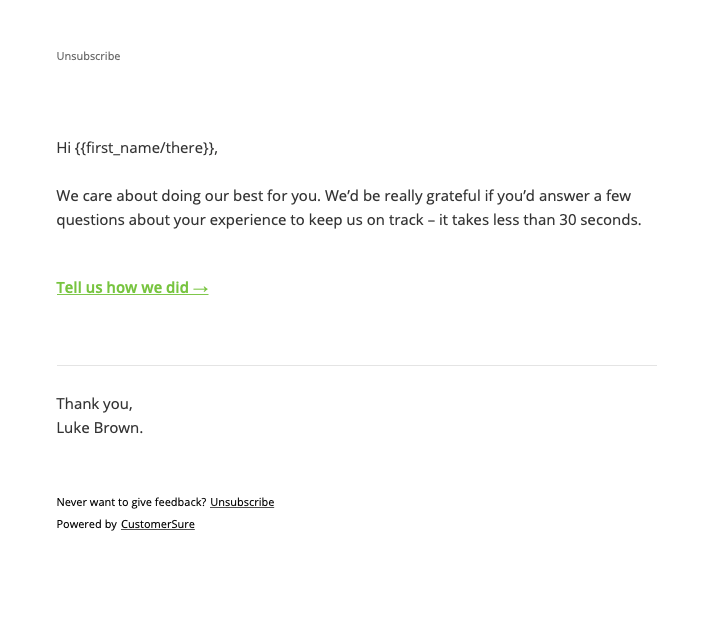
A very plain design
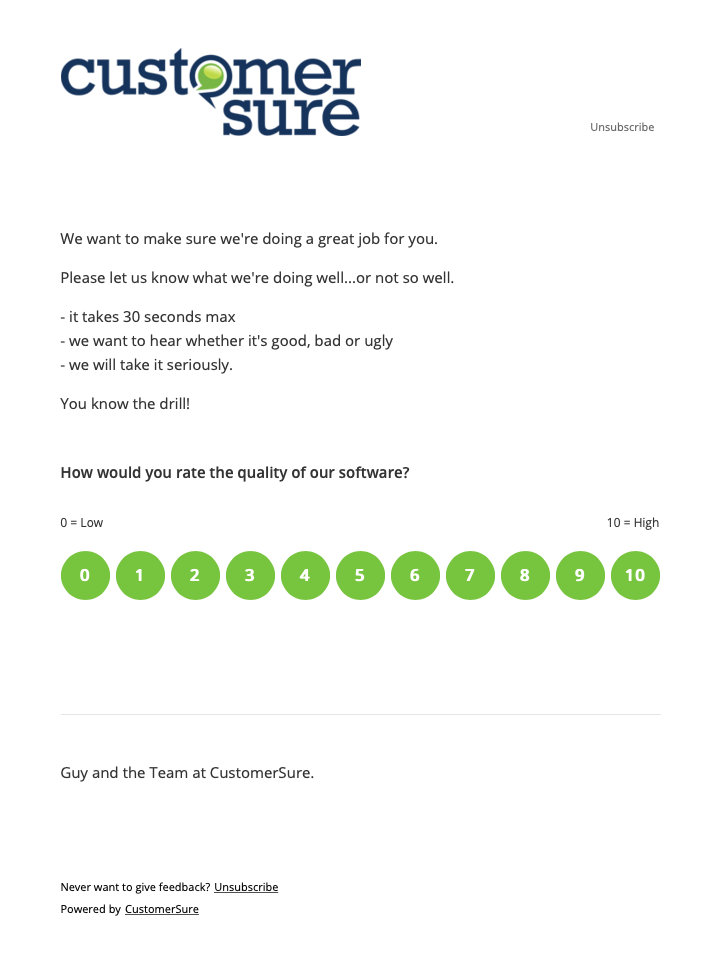
Include company logo and ask the 1st question
Brand colours, header & signature images
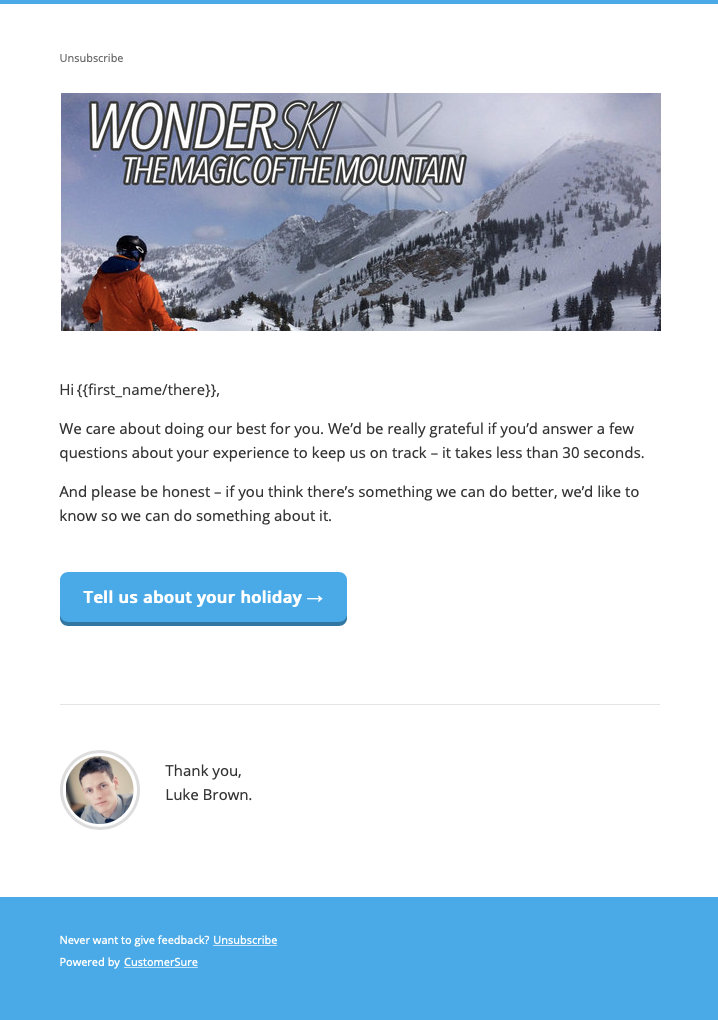
Using variables in your email templates
You can merge data into your feedback request emails by using variables in curly braces in the email template text. The example above show a personalised greeting. The data for the variables can come from 1 of 3 sources:
1. CustomerSure fields
{{title_and_last_name_or_first_name}}

{{title}}

{{first_name}}

{{last_name}}

{{email}}

{{reference}}

{{telephone_number}}

{{company_name}}

{{postcode}}

{{address_line_1}}

{{staff_first_name}}

{{staff_full_name}}
2. Segment data
Use the Segment Key from any of the segments set up on your account, for example, if you had product
category and order type segments, you could use:
{{product_category}}

{{order_type}}
3. Extra data
Anything else that’s stored against your feedback requests that doesn’t match a CustomerSure field or a segment can be used. For example if you have a column in a CSV file with the header ‘ticket_id’, you can use this column header as the variable name in your templates, e.g:
Your ticket number: {{ticket_id}}
Further Tips:
- All variables support a fallback option in case the value is missing, e.g:
Hi {{first_name/there}}resulting in ‘Hi there’ if the first name isn’t set. Hi {{title_and_last_name_or_first_name/there}}is a special variable for using in the email’s salutation. Assuming Mrs Jane Smith:- It would output ‘Hi Mrs Smith’.
- If the title or last name were missing, it would output ‘Hi Jane’
- If it cannot output either of those, the fallback would be used: ‘Hi there’.
- The ‘Scheduled for Sending’ and ‘Sending History’ pages display all the fields and data set against each Feedback Request.
- Variables can be used in the body, subject, link text and signature fields of an email template.
Please get in touch if you’d like any help with this feature.